This guide covers both sides of the connection: getting a usable server URL from inside GeoLab (the Jupyter side), and attaching your local VS Code to that server (the VS Code side).
GeoLab runs on a 2i2c-managed JupyterHub on Kubernetes. Each user gets a pod with its own single-user Jupyter server behind the Hub proxy. VS Code connects to that per-user server URL over HTTPS — there is no SSH into the pod, and no special “proxy” extension is needed.
Prerequisites
On your laptop:
VS Code
JupyterHub extension (
JupyterHub)Python extension (
ms-python.python)
In GeoLab:
A running server. Log in at
https://geolab.earthscope.cloudand start your server so the pod is alive before you try to connect. If the pod is culled or stopped, the URL and token become invalid.
Jupyter side: get a connectable URL
The url field reported by Jupyter points at 0.0.0.0:8888, which is the
pod-internal address and is not reachable from your laptop. You need to rebuild
the URL against the public Hub host and append the server token.
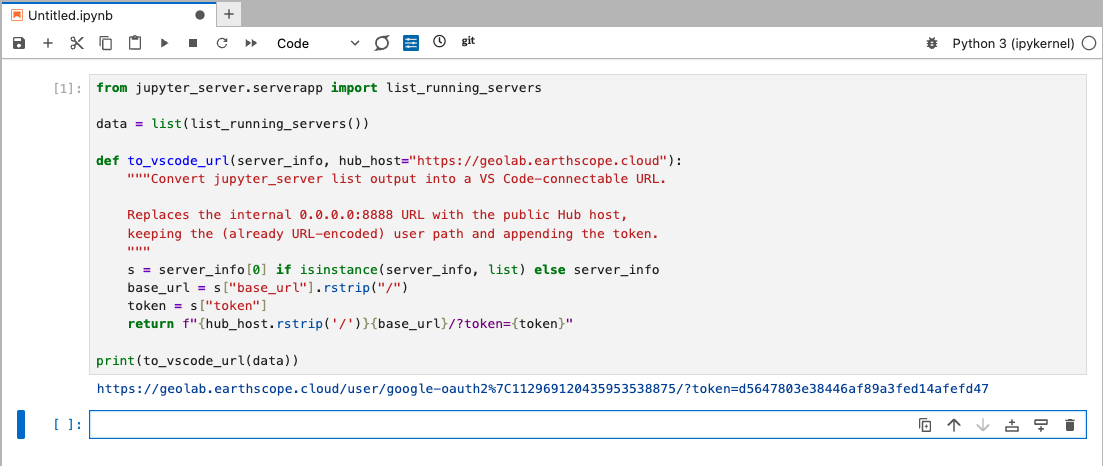
Open a notebook in your running GeoLab server and run this in a cell:
from jupyter_server.serverapp import list_running_servers

data = list(list_running_servers())

def to_vscode_url(server_info, hub_host="https://geolab.earthscope.cloud"):
    """Convert jupyter_server list output into a VS Code-connectable URL.

    Replaces the internal 0.0.0.0:8888 URL with the public Hub host,
    keeping the (already URL-encoded) user path and appending the token.
    """
    s = server_info[0] if isinstance(server_info, list) else server_info
    base_url = s["base_url"].rstrip("/")
    token = s["token"]
    return f"{hub_host.rstrip('/')}{base_url}/?token={token}"

print(to_vscode_url(data))
This prints a line like:
https://geolab.earthscope.cloud/user/google-oauth2%7C112969120435953538875/?token=0f22dabff13f4ad48a45fe1ebebcc105Copy that entire line — you will paste it into VS Code in the next section.
Notes on the URL
The
%7Cin the path is an already-encoded|(pipe) from your OAuth2 user ID. Leave it as-is. Do not re-encode it, or it becomes%257Cand the path breaks.The token identifies your session. Treat it like a password and do not commit it or share it.
If the token comes back empty or VS Code later rejects it, request a Hub API token instead: go to
https://geolab.earthscope.cloud/hub/token, click Request new API token, and substitute that value for thetokenin the URL.
VS Code side: connect to the server
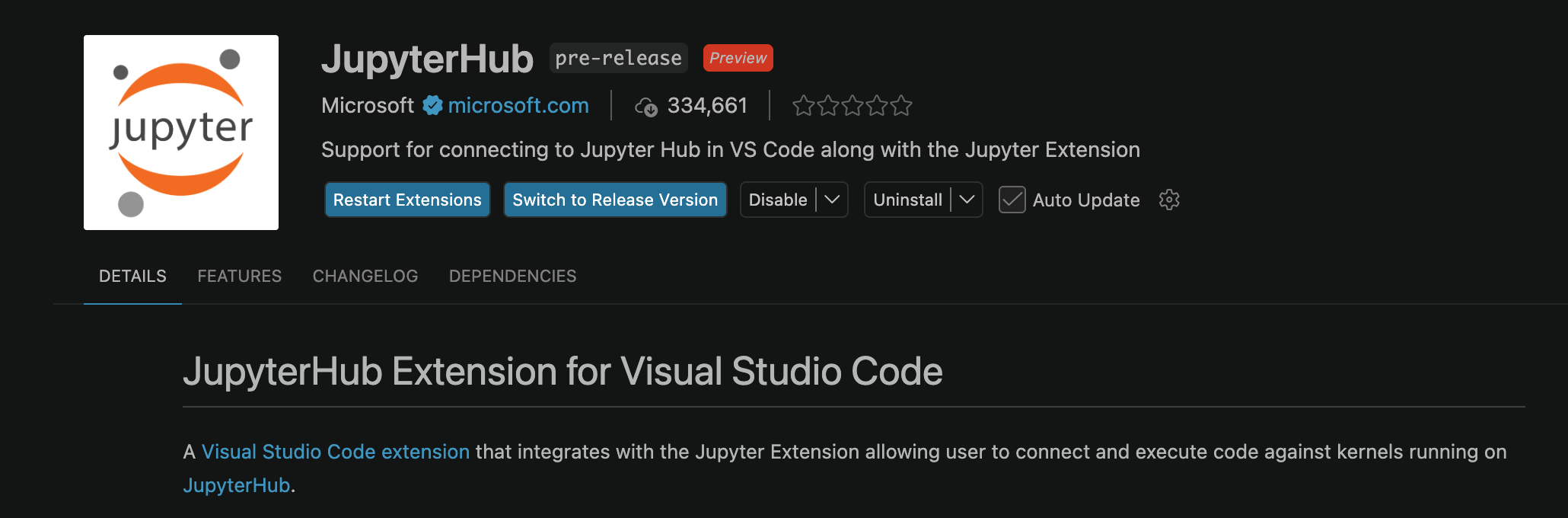
Install the Jupyter extension (
JupyterHub) from the Extensions view if you have not already.
Open or create a notebook file (
.ipynb) in VS Code.Click the kernel picker in the top-right of the notebook (“Select Kernel”).

Choose Enter the URL of the running JupyterHub Server...
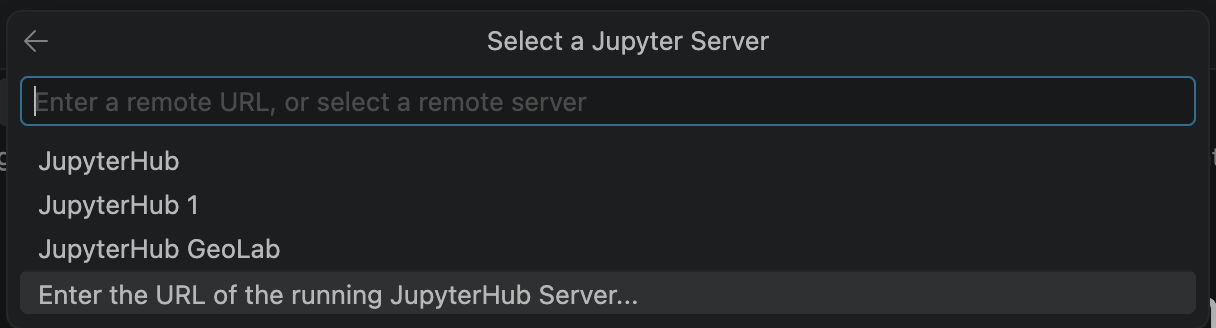
Choose Enter the URL of running JupyterHub server. Paste the full tokenized URL you copied from GeoLab, including the
?token=...part, then press Enter.

Press
Enterfor Enter your username..

Press
Enterfor Enter your password or API token....

Optional: Change server name

Select a Kernel from JupyterHub GeoLab. Choose
Python 3 (ipykernel)to select a new kernel.
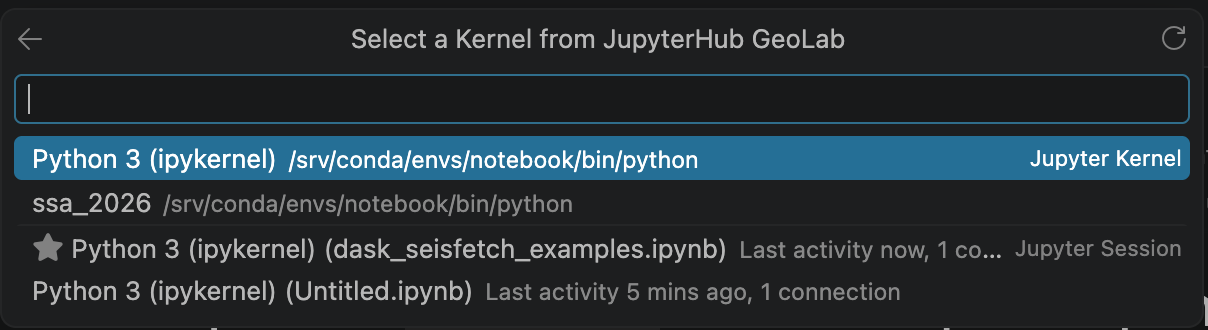
Run a cell to confirm. Execution now happens inside your GeoLab pod, using the GeoLab environment and compute — not your laptop.
Verifying you are on the remote kernel
Run this in a cell. It should report the pod’s paths and hostname, not your laptop’s:
import sys, socket, os
print("hostname:", socket.gethostname())
print("python:  ", sys.executable)
print("cwd:     ", os.getcwd())
On GeoLab you should see something like a jupyter-... hostname, a Python
executable under /srv/conda/ or similar, and a working directory of
/home/jovyan.
Troubleshooting
“Cannot connect” or the connection times out. The most common cause is that your server is not running. Open the URL in a browser first to spin up / confirm the pod, then retry in VS Code.
Token rejected.
The single-user server token is sometimes empty or not accepted through the Hub
proxy. Use a Hub API token from https://geolab.earthscope.cloud/hub/token
instead, and rebuild the URL with it.
Path looks wrong (404).
Confirm the /user/<id>/ segment matches exactly what appears in your browser’s
address bar while you are in JupyterLab. Do not manually decode the %7C.
Connection worked earlier, now fails. Hub servers get culled after inactivity. When the pod restarts, the URL and/or token change. Re-run the snippet on the Jupyter side to get a fresh URL.
Looking for a “jupyter-server-proxy” VS Code extension.
There isn’t one, and you do not need it. jupyter-server-proxy is a
server-side package for proxying other web apps (like the Dask dashboard)
through the Hub; it plays no role in the VS Code connection. The Jupyter
extension talks to the server URL directly.